Control who can see and change folders. Plathix Pro lets you choose Full, Upload, View, or None for each WordPress role. WordPress permissions still apply. If WordPress does not allow an action, Plathix does not add it.
How to set access
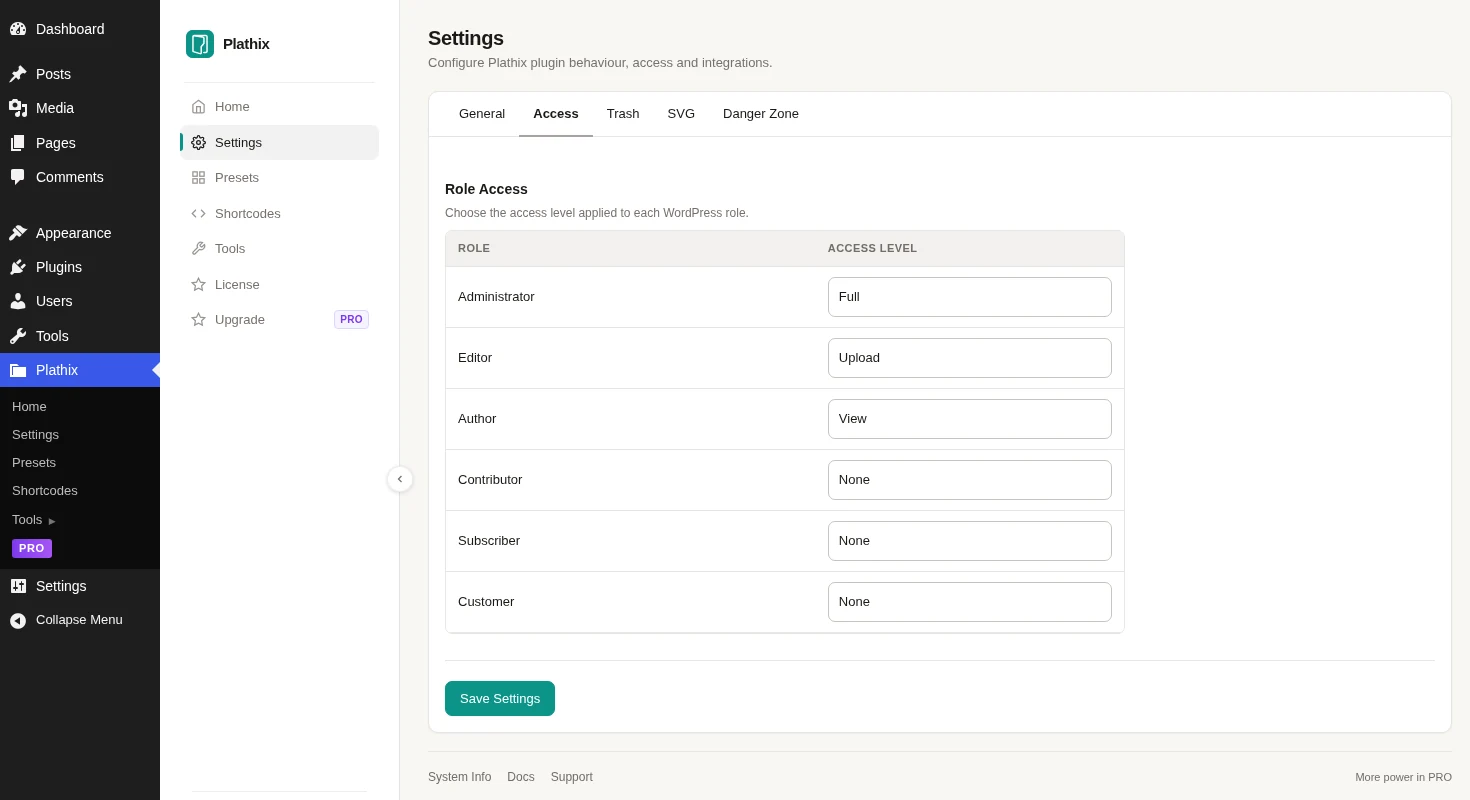
Open Plathix → Settings → Access. Then choose the level you want for each role.
-
Open Plathix → Settings → Access.
Every WordPress role on your site is listed with its current access level.
-
Find the WordPress role you want to change.
Roles appear in the left column, their access level in the right one.
-
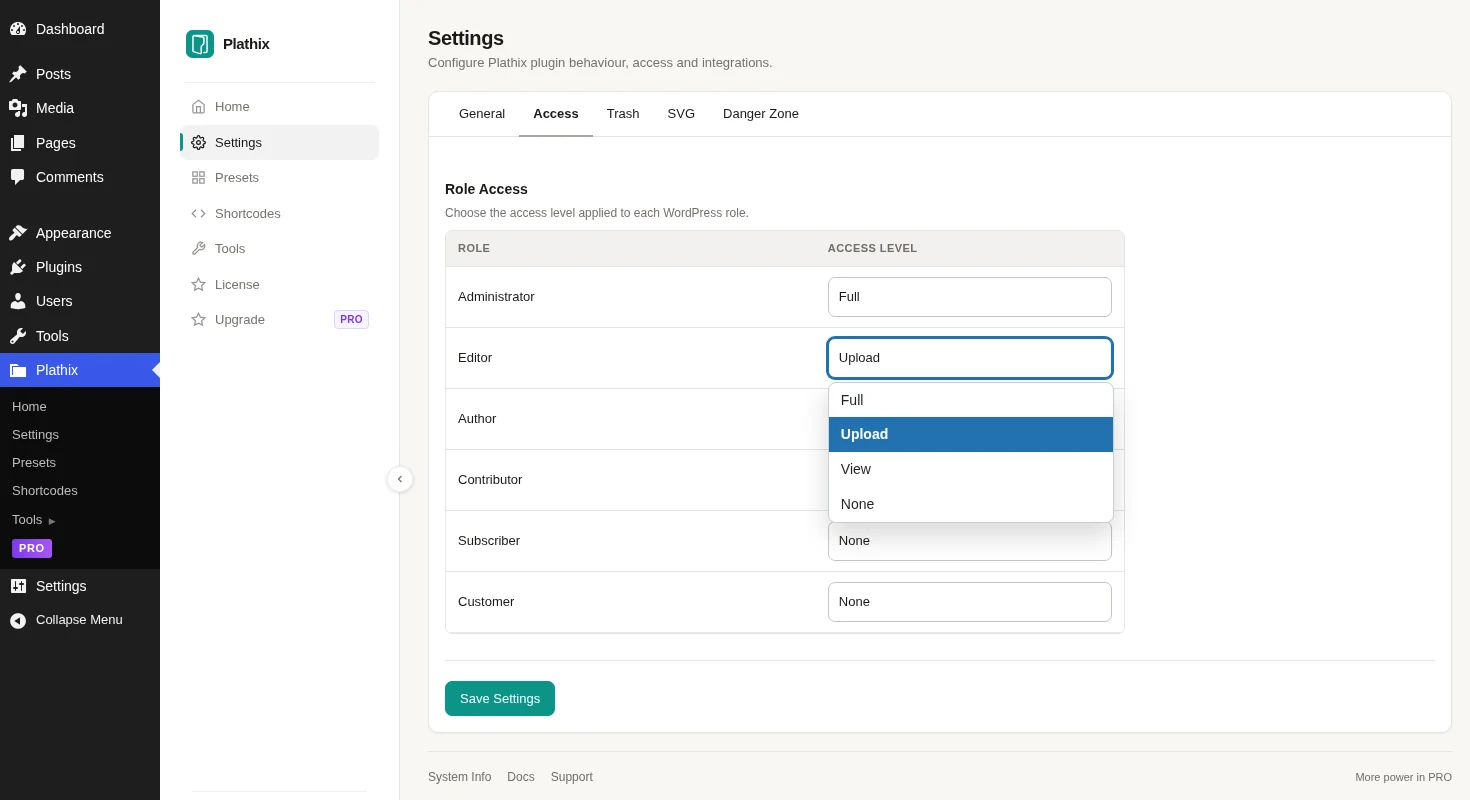
Choose Full, Upload, View, or None for that role.
Open the dropdown next to the role and pick a level, then press Save Settings.
Which level should I choose?
- Use Full when the role should organize files and manage the folder structure.
- Use Upload when the role should organize files but not change the folder tree.
- Use View when the role should see folders but not change them.
- Use None when Plathix should not be available to that role.
Four levels of access
Choose what each WordPress role can do inside Plathix. These levels control the folder workspace, but they do not switch every Plathix feature on or off. Ready Folder Sets, Replace Media, SVG controls, imports and exports, galleries and shortcodes, ZIP downloads, the Audit Log, and plugin settings may also use WordPress permissions or feature-specific checks.
| Level | What it means |
|---|---|
| Full | Manage the folder structure and organize files without Plathix folder restrictions. Create, rename, move, reorder, trash, and restore folders. Use file actions such as bulk move and ZIP download where available. This level does not by itself define access to Ready Folder Sets, Replace Media, SVG controls, imports and exports, galleries and shortcodes, the Audit Log, or plugin settings; those tools can have their own WordPress or feature-specific permission checks. |
| Upload | Work with files inside the existing folder structure without changing the tree. For roles with upload_files, this includes moving files, bulk trash and restore, favorites, and placing new uploads into the open folder. Upload changes folder access only. It does not by itself define access to Replace Media, SVG controls, galleries and shortcodes, Ready Folder Sets, imports, exports, or other Plathix tools. |
| View | See the folder tree and folder contents without moving files or changing the structure. View makes the folder workspace read-only; it does not make the whole Plathix plugin read-only. Other Plathix tools can still have their own WordPress or feature-specific permission checks. |
| None | Hide the Plathix folder workspace from that role. None is not a global WordPress permission block and does not remove native WordPress capabilities. For example, a role that already has upload_files can still use WordPress Add Media. Access to other Plathix tools is checked separately where those tools use their own permissions. |
Access levels are only one part of Plathix permissions. The role tables below show exactly what Full, Upload, View, and None change. Features with separate permission rules are called out where needed.
WordPress permissions still come first
Plathix adds a folder access layer. It does not replace the WordPress role system.
- A Contributor can be allowed to see the folder tree, but WordPress still does not let that role upload media.
- A Subscriber can see folders only when Plathix access is above None. The role still cannot upload files or edit posts.
- Changing Plathix access does not grant edit_post, upload_files, or other WordPress capabilities.
This makes access predictable: Plathix can limit what a role does inside the folder system, but it does not silently expand the role itself.
Default Plathix Pro levels
With an active Plathix Pro license, the standard WordPress roles start with these levels:
| WordPress role | Default Plathix Pro level |
|---|---|
| Administrator | Full |
| Editor | Upload |
| Author | View |
| Contributor | None |
| Subscriber | None |
Author starts on View even though WordPress gives the role upload_files. The table below shows what that combination means in practice.
WooCommerce Customer
WooCommerce Customer is not a standard WordPress role. When WooCommerce adds it, Plathix treats it like another role in Access settings. It has no special Plathix capability override.
Role-by-role reference
Choose a role to see exactly what Full, Upload, View, and None allow. These tables show the full result of Plathix access together with the standard WordPress capabilities for each role.
Audit Log has one extra WordPress permission check. It requires Full access in Plathix and the WordPress manage_options capability. Standard Administrators have it. Standard Editors, Authors, Contributors, Subscribers, and WooCommerce Customers do not.
AdministratorDefault: Full
Most sites leave Administrator on Full.
| Action | Full | Upload | View | None |
|---|---|---|---|---|
| View folder tree and folder contents | Yes | Yes | Yes | — |
| Plathix UI on screens the role can access | Yes | Yes | Yes | — |
| Move a file to a folder / remove it from a folder | Yes | Yes | — | — |
| Bulk trash / bulk restore files | Yes | Yes | — | — |
| Favorites | Yes | Yes | — | — |
| New upload goes into the open folder | Yes | Yes | — | — |
| Upload SVG | Yes* | Yes* | — | — |
| Replace Media (also requires edit_post for the attachment) | Yes | Yes | — | — |
| Create / rename / delete folders; batch actions; reorder | Yes | — | — | — |
| Folder Trash / delete permanently | Yes | — | — | — |
| PRO: Download folder as ZIP | Yes | — | — | — |
| PRO: Audit Log, Export Structure, Import | Yes — Full + manage_options | — | — | — |
| Normal WordPress Add Media | Available at every Plathix level because WordPress grants upload_files. | |||
| Plathix folder panel in post/page/CPT editor | Currently not shown (known issue) | Currently not shown (known issue) | Currently not shown (known issue) | — |
| Save a folder selection in the post/page/CPT editor | Available when WordPress grants edit_post for that post. | |||
EditorDefault: Upload
Editor works like Administrator for these actions. The default is Upload instead of Full.
| Action | Full | Upload | View | None |
|---|---|---|---|---|
| View folder tree and folder contents | Yes | Yes | Yes | — |
| Plathix UI on screens the role can access | Yes | Yes | Yes | — |
| Move a file to a folder / remove it from a folder | Yes | Yes | — | — |
| Bulk trash / bulk restore files | Yes | Yes | — | — |
| Favorites | Yes | Yes | — | — |
| New upload goes into the open folder | Yes | Yes | — | — |
| Upload SVG | Yes* | Yes* | — | — |
| Replace Media (also requires edit_post for the attachment) | Yes | Yes | — | — |
| Create / rename / delete folders; batch actions; reorder | Yes | — | — | — |
| Folder Trash / delete permanently | Yes | — | — | — |
| PRO: Download folder as ZIP | Yes | — | — | — |
| PRO: Audit Log, Export Structure, Import | No — no manage_options | — | — | — |
| Normal WordPress Add Media | Available at every Plathix level because WordPress grants upload_files. | |||
| Plathix folder panel in post/page/CPT editor | Currently not shown (known issue) | Currently not shown (known issue) | Currently not shown (known issue) | — |
| Save a folder selection in the post/page/CPT editor | Available when WordPress grants edit_post for that post. | |||
AuthorDefault: View
Author works like Editor for most Plathix actions. Its default is View, and SVG has one extra rule.
| Action | Full | Upload | View | None |
|---|---|---|---|---|
| View folder tree and folder contents | Yes | Yes | Yes | — |
| Plathix UI on screens the role can access | Yes | Yes | Yes | — |
| Move a file to a folder / remove it from a folder | Yes | Yes | — | — |
| Bulk trash / bulk restore files | Yes | Yes | — | — |
| Favorites | Yes | Yes | — | — |
| New upload goes into the open folder | Yes | Yes | — | — |
| Upload SVG | Not by default* | Not by default* | — | — |
| Replace Media (also requires edit_post for the attachment) | Yes | Yes | — | — |
| Create / rename / delete folders; batch actions; reorder | Yes | — | — | — |
| Folder Trash / delete permanently | Yes | — | — | — |
| PRO: Download folder as ZIP | Yes | — | — | — |
| PRO: Audit Log, Export Structure, Import | No — no manage_options | — | — | — |
| Normal WordPress Add Media | Available at every Plathix level because WordPress grants upload_files. | |||
| Plathix folder panel in post/page/CPT editor | Currently not shown (known issue) | Currently not shown (known issue) | Currently not shown (known issue) | — |
| Save a folder selection in the post/page/CPT editor | Available only on posts the Author is allowed to edit; by default, Authors cannot edit other users’ posts. | |||
ContributorDefault: None
Any level except None lets a Contributor see folders. No level lets them move or upload files, because WordPress does not allow that for this role.
| Action | Full | Upload | View | None |
|---|---|---|---|---|
| View folder tree and folder contents | Yes | Yes | Yes | — |
| Plathix UI on screens the role can access | Yes | Yes | Yes | — |
| Move a file to a folder / remove it from a folder | — | — | — | — |
| Bulk trash / bulk restore files | — | — | — | — |
| Favorites | — | — | — | — |
| New upload goes into the open folder | — | — | — | — |
| Upload SVG | — | — | — | — |
| Replace Media | — | — | — | — |
| Create / rename / delete folders; batch actions; reorder | — | — | — | — |
| Folder Trash / delete permanently | — | — | — | — |
| PRO: Download folder as ZIP | — | — | — | — |
| PRO: Audit Log, Export Structure, Import | — | — | — | — |
| Normal WordPress Add Media | Not available. The standard Contributor role does not have upload_files. | |||
| Plathix folder panel in post/page/CPT editor | Currently not shown (known issue) | Currently not shown (known issue) | Currently not shown (known issue) | — |
| Save a folder selection in the post/page/CPT editor | Only on the Contributor’s own unpublished draft while WordPress still grants edit_post for that draft. | |||
SubscriberDefault: None
Any level except None can show Plathix folders on screens the role can already access. Subscriber still cannot upload media or edit posts.
| Action | Full | Upload | View | None |
|---|---|---|---|---|
| View folder tree and folder contents | Yes | Yes | Yes | — |
| Plathix UI on screens the role can access | Yes | Yes | Yes | — |
| Move a file to a folder / remove it from a folder | — | — | — | — |
| Bulk trash / bulk restore files | — | — | — | — |
| Favorites | — | — | — | — |
| New upload goes into the open folder | — | — | — | — |
| Upload SVG | — | — | — | — |
| Replace Media | — | — | — | — |
| Create / rename / delete folders; batch actions; reorder | — | — | — | — |
| Folder Trash / delete permanently | — | — | — | — |
| PRO: Download folder as ZIP | — | — | — | — |
| PRO: Audit Log, Export Structure, Import | — | — | — | — |
| Normal WordPress Add Media | Not available. The standard Subscriber role does not have upload_files. | |||
| Plathix folder panel in post/page/CPT editor | Currently not shown (known issue) | Currently not shown (known issue) | Currently not shown (known issue) | — |
| Save a folder selection in the post/page/CPT editor | Not available in the standard role because Subscriber cannot edit posts. | |||
Customer (WooCommerce)No standard default
Customer follows the same practical limits as Subscriber unless another plugin changes the role’s WordPress capabilities.
| Action | Full | Upload | View | None |
|---|---|---|---|---|
| View folder tree and folder contents | Yes | Yes | Yes | — |
| Plathix UI on screens the role can access | Yes | Yes | Yes | — |
| Move a file to a folder / remove it from a folder | — | — | — | — |
| Bulk trash / bulk restore files | — | — | — | — |
| Favorites | — | — | — | — |
| New upload goes into the open folder | — | — | — | — |
| Upload SVG | — | — | — | — |
| Create / rename / delete folders; batch actions; reorder | — | — | — | — |
| Folder Trash / delete permanently | — | — | — | — |
| PRO: Download folder as ZIP | — | — | — | — |
| PRO: Audit Log, Export Structure, Import | — | — | — | — |
| Normal WordPress Add Media | Not available. The standard WooCommerce Customer role does not have upload_files. | |||
| Plathix folder panel in post/page/CPT editor | Currently not shown (known issue) | Currently not shown (known issue) | Currently not shown (known issue) | — |
| Save a folder selection in the post/page/CPT editor | Not available in the standard role because Customer cannot edit posts. | |||
What Access does not control by itself
Normal WordPress uploads
Add Media comes from the WordPress upload_files capability. Plathix Access does not grant or remove that capability. This is why an Author can still use Add Media when Plathix is set to None, while a Contributor cannot upload media even when Plathix is set to Full.
SVG uploads
SVG has another permission layer. SVG support must be enabled, the role must have normal WordPress upload rights, and the role must be allowed in the SVG settings. Administrator and Editor are allowed by default. Author is not.
Folders in posts, pages, and custom post types
A Plathix level above None can show the folder panel in the editor. Saving the selected folder still follows the WordPress edit_post permission for that post.
FAQ
Can Full give a Contributor media upload rights?
No. Contributor does not have upload_files by default. Plathix does not add that WordPress capability.
Does None stop an Author from using Add Media?
No. None hides Plathix for that role. It does not remove WordPress upload_files, so normal Add Media can still be available.
Why can Full and Upload look the same for Contributor?
Because Contributor does not have upload_files. Both levels are above None for viewing, but neither can add the missing WordPress permission.
Is View available without Plathix Pro?
No. Without Pro, the effective levels are Full, Upload, or None, based on WordPress capabilities and any lower saved Access setting.
Can Author upload SVG with Full or Upload?
Not by default. SVG support must be enabled and Author must be added to the allowed-role list.
Does Plathix change who can edit a post?
No. Saving a folder selection still follows WordPress edit_post for that post.
Does Full include the Audit Log?
Not by itself. Audit Log also requires the WordPress manage_options capability. Standard Administrators have it. Standard Editors and Authors do not.
Is WooCommerce Customer treated specially?
No. Plathix treats Customer like another role in Access settings. The standard Customer role has no upload_files or edit_posts capability.