See the state of your Media Library in one place
WordPress shows you files. It does not show the state of the whole library.
Plathix Home puts the main numbers together: uploads, file types, unsorted media, folder structure, and disk use.
See where to look before opening the file grid.
Know where to start
Open Home and the first screen answers questions that are hard to judge from the normal WordPress file grid.
Catch sudden upload bursts
See the last 7 or 30 days and the busiest upload day.
If the chart shows 42 files in one day, you know exactly when that batch arrived.
Check that batch for files that still need sorting while you still remember what was uploaded.
Turn cleanup into visible progress
“My Media Library is a mess” is hard to act on.
“187 files still need a folder” gives you a clear starting point.
Plathix shows the unsorted count and its share of the whole library.
Use Fix to open those files. As you sort them, the number goes down.
See what makes up your library
One chart shows the mix of images, PDFs, SVG files, and other media.
If one format dominates, you know what kind of content makes up most of the library.
That shows what kind of content you are dealing with before cleanup, migration, or workflow changes.
Judge the folder structure without opening every branch
A large library can have a clean structure or a deep, tangled one.
Home shows the structure without making you expand every branch in the sidebar.
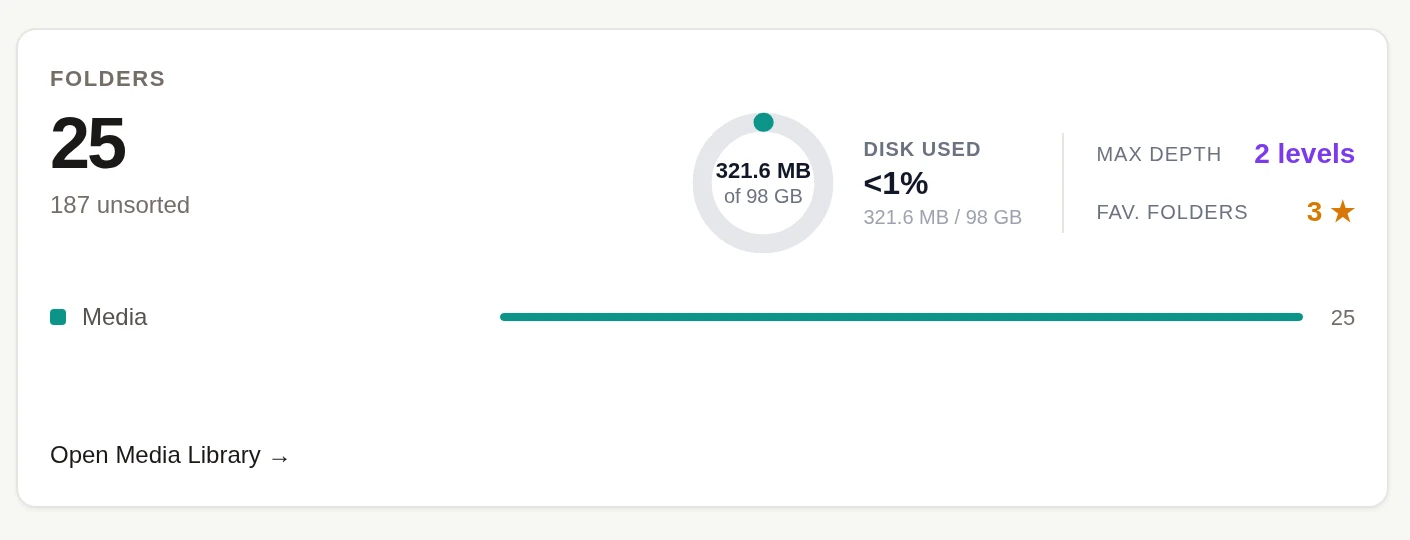
- See total folders and files outside folders.
- Check the deepest folder level.
- See how many folders are marked as favorites.
- Check Media Library disk use.
See how far the structure has spread before you start working through it.
When there is a next step, Home shows it
Home shows actions that match the current state of the site.
Still setting up Plathix?
Home reminds you about infinite scroll and your SVG policy while they still need attention. Finished cards disappear.
Explore Plathix settings →Moving from another folder plugin?
If Plathix detects a supported folder plugin, Home shows an import option.
See migration options →No folder structure yet?
If there is no folder structure yet, Home suggests a ready media folder preset. Presets organize the Media Library only, including in PRO.
Explore folder presets →Moving from another folder plugin?
If Plathix finds a folder plugin it can import from, Home shows a migration notice.
You will see that an import is possible before you start looking through settings.
Before you move anything, see which plugins Plathix imports from and how the import works. Per-plugin migration guides are being published.
Free covers the Media Library. PRO adds content and activity details.
The Free Home screen includes the core Media Library overview.
PRO keeps those panels and adds details for content and team workflows.
See where folders are turned on
Content Types shows folder counts across media, posts, pages, and WooCommerce products.
See the latest logged changes
Recent activity shows a short list from the audit log without opening the full log.
Keep gallery shortcodes close
Gallery Shortcodes shows folder-based galleries and their shortcodes from Home.
Open common Plathix screens faster
Quick Links goes straight to frequently used Plathix screens. PRO also adds a documentation link in the Home footer.
Free and PRO side by side
Home is not just for setup
The library keeps changing after setup.
After a busy publishing week
Check how many new files arrived and how much still sits in Unsorted.
See whether that week left new sorting work behind.
Before a client handoff
Check unsorted media, folder depth, and disk use before cleanup or handoff.
Review the library before opening the full file grid.
Overview FAQ
Is the Home overview included in Plathix Free?
Does Home use data from my WordPress site?
Why do some Home cards disappear?
See the library before you start working through it
Install Plathix Free and open Home to see the Media Library data already on your site.