Folders for your WordPress Media Library
Your Media Library is one long list of files.
After months or years of uploads, you may know a file is there. You still may not know where to find it.
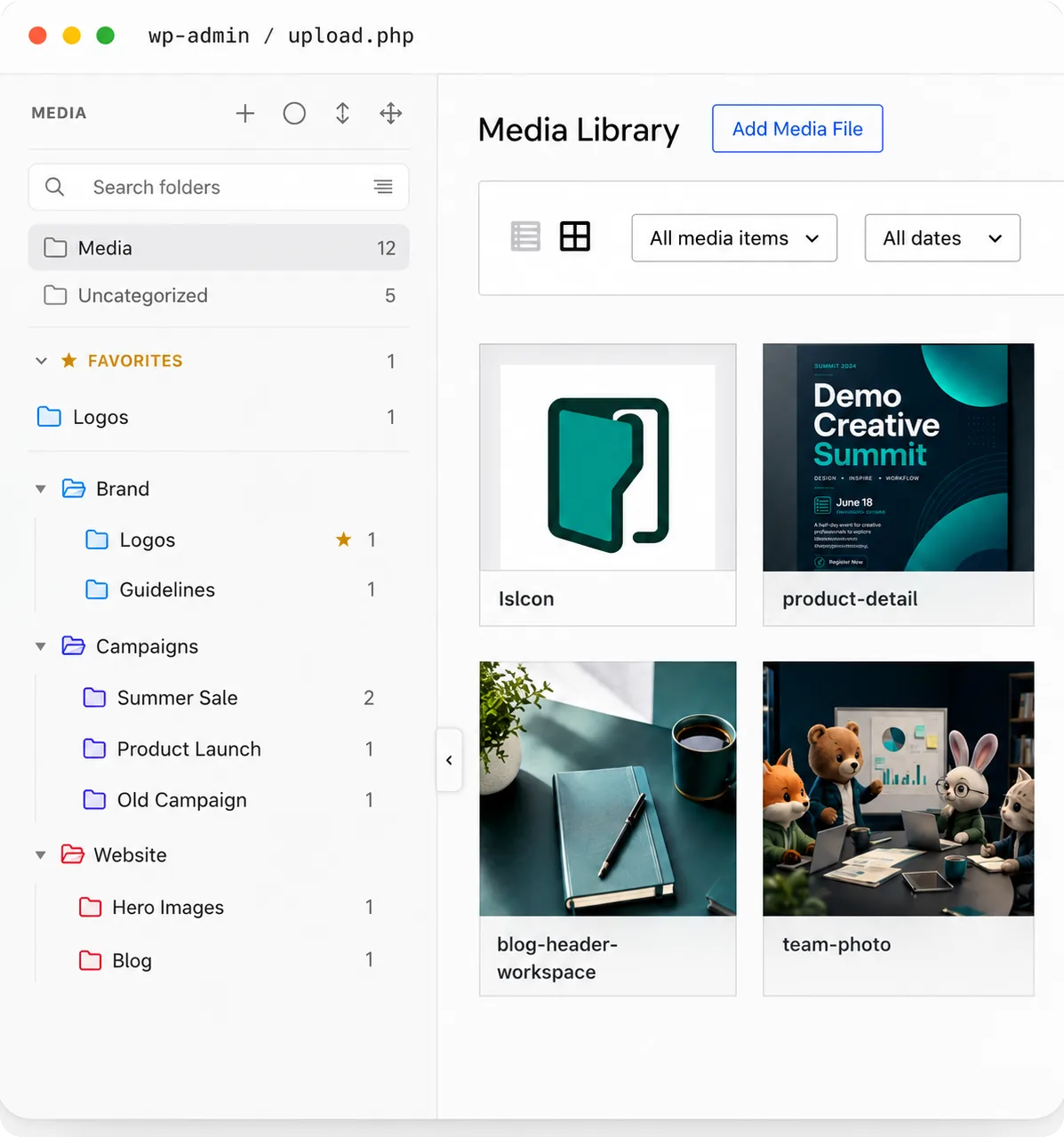
Plathix adds a folder tree, so you can group media, find old files faster, and stop scrolling. Your file URLs stay the same.
Does Plathix work where you actually choose media?
A folder plugin can work in the Media Library and behave differently inside a builder or media picker.
We test each workflow separately and publish the versions, actions, results, and known limitations.
 Gutenberg
Image block · Featured Image · Media picker
Tested
View Gutenberg test →
Gutenberg
Image block · Featured Image · Media picker
Tested
View Gutenberg test →
 Elementor
Image widget · Media picker · Folder navigation
Tested
View Elementor test →
Elementor
Image widget · Media picker · Folder navigation
Tested
View Elementor test →
 WooCommerce
Product image · Gallery · Media picker
Tested
View WooCommerce test →
WooCommerce
Product image · Gallery · Media picker
Tested
View WooCommerce test →
 Divi
Image module · Media picker · Folder navigation
Tested
View Divi test →
Divi
Image module · Media picker · Folder navigation
Tested
View Divi test →
 Polylang
Media assignments · Multilingual workflow
Tested
View Polylang test →
Polylang
Media assignments · Multilingual workflow
Tested
View Polylang test →
You know the file is there.
You just cannot find it.
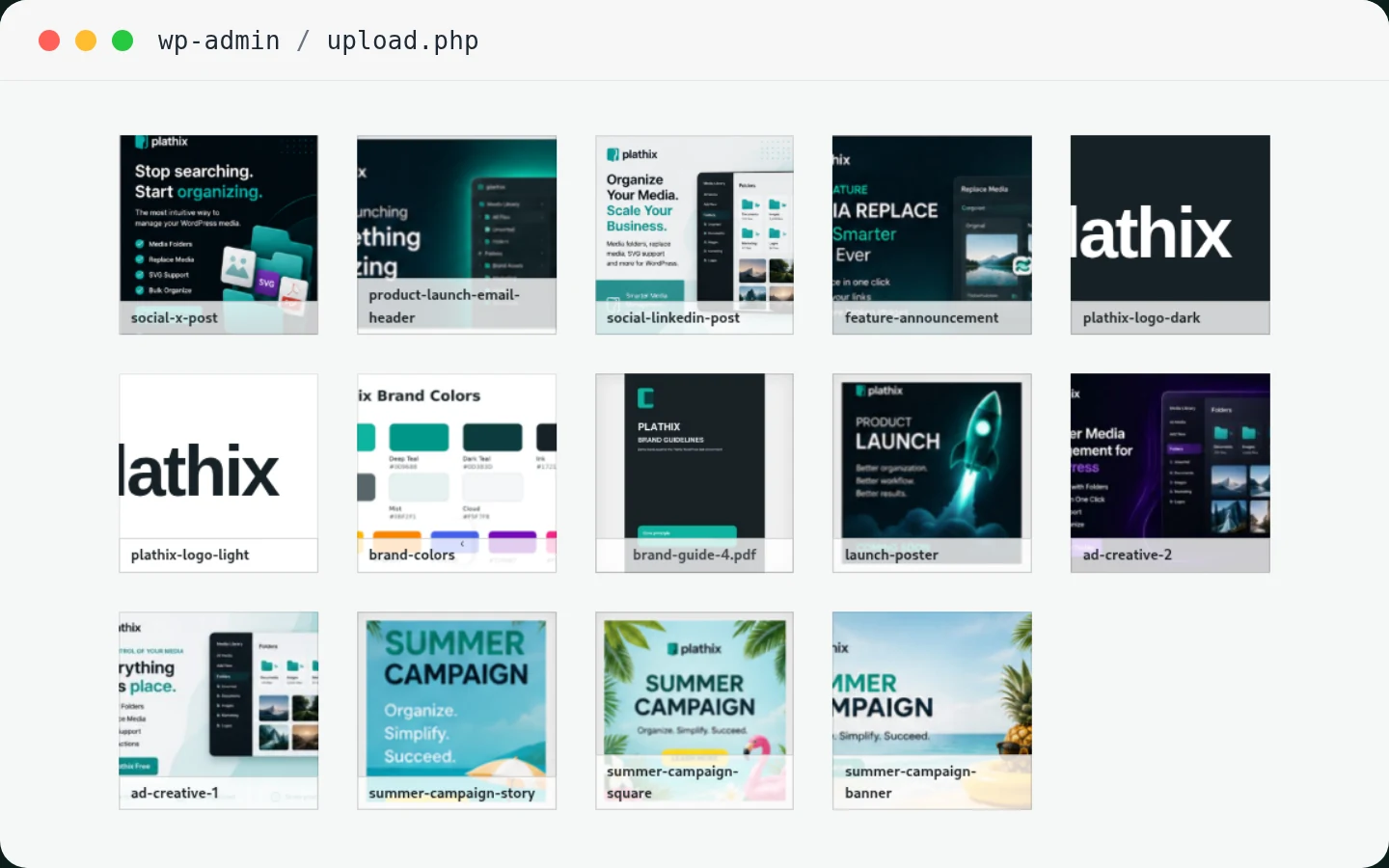
A Media Library is easy when it is small. Then the site grows. Product photos, banners, PDFs, logos, and screenshots all end up together.
The files are fine. The problem is there is no structure.
See how folders fix this →You just do not know where to start looking.
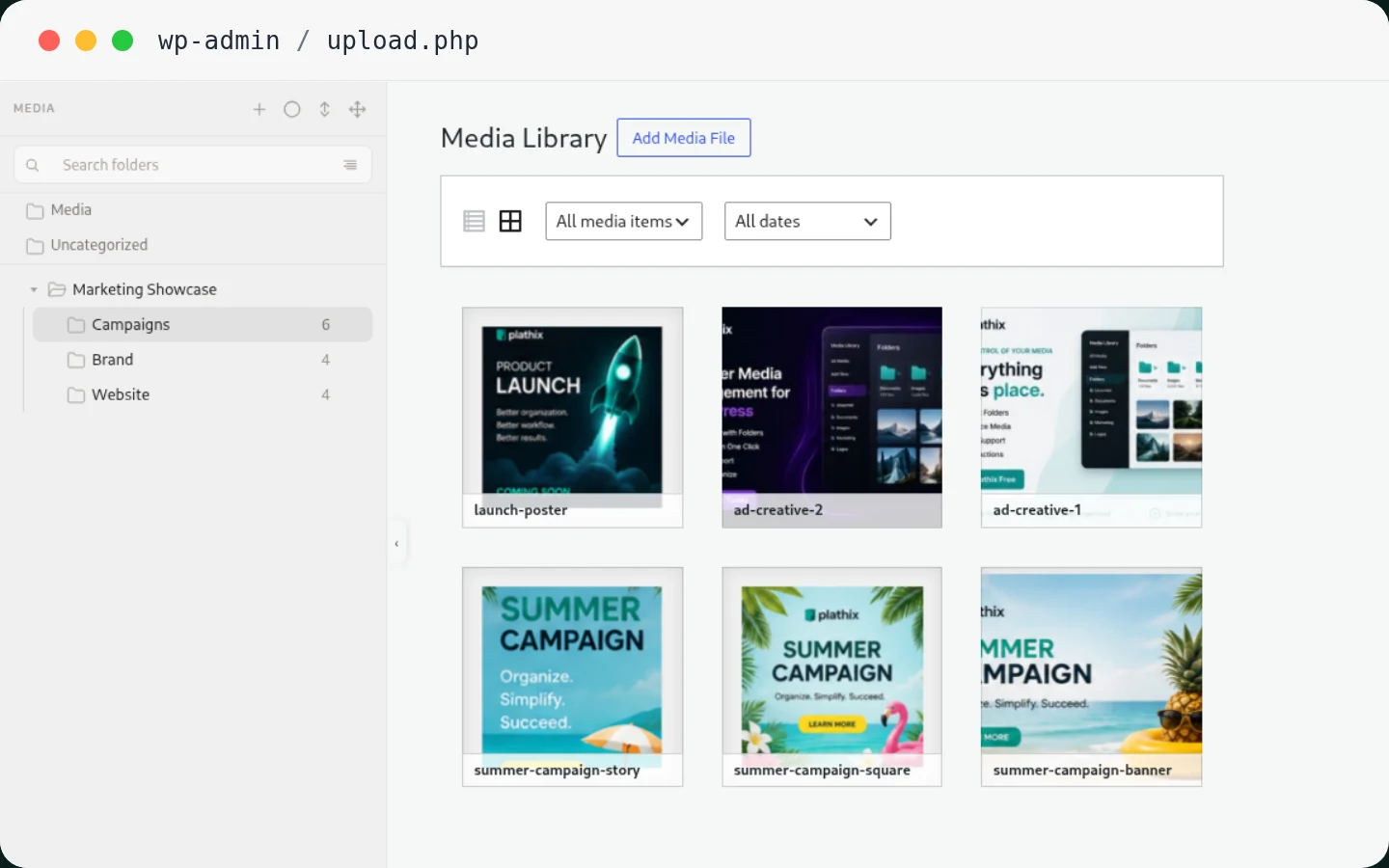
Give every file a place that makes sense
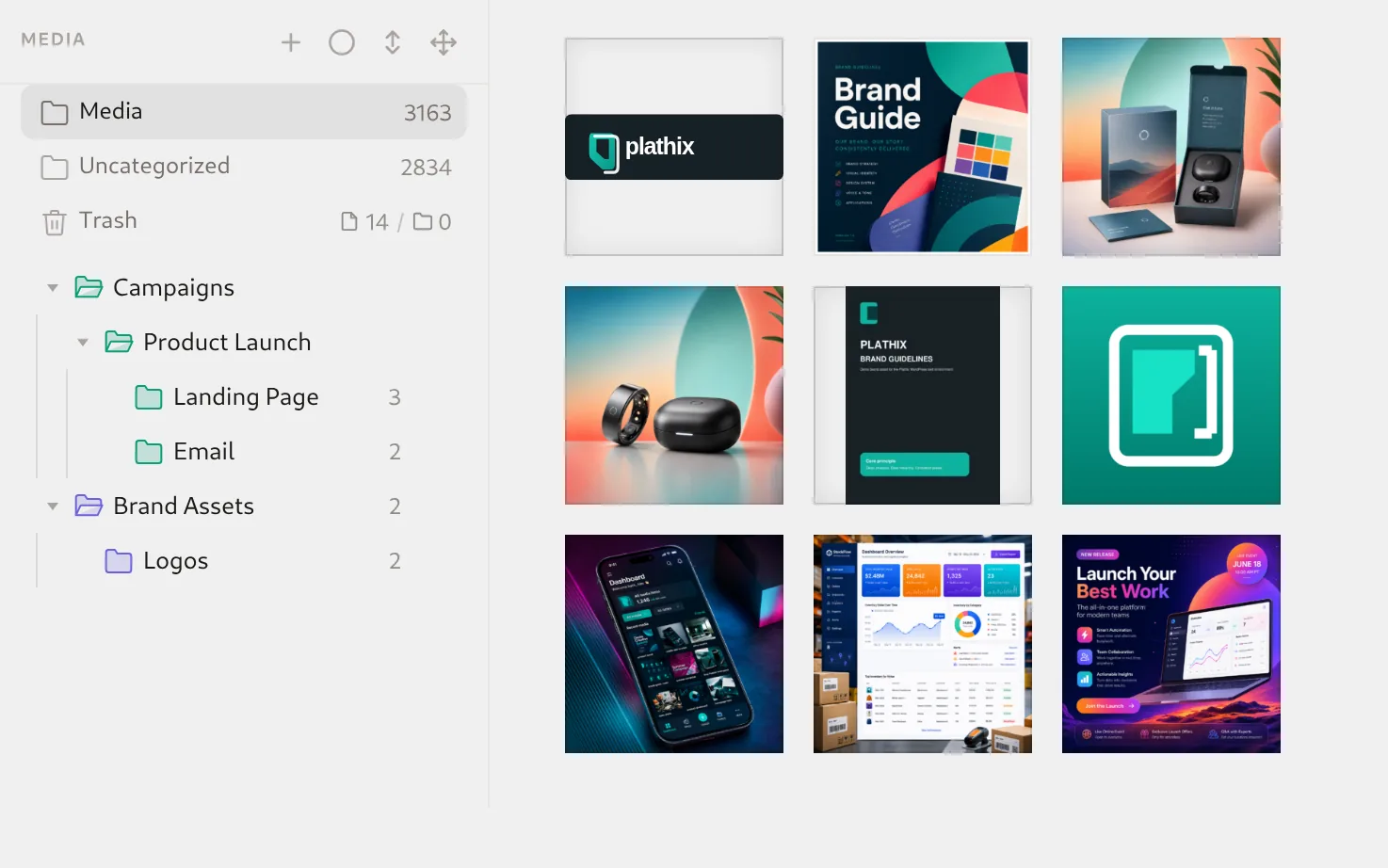
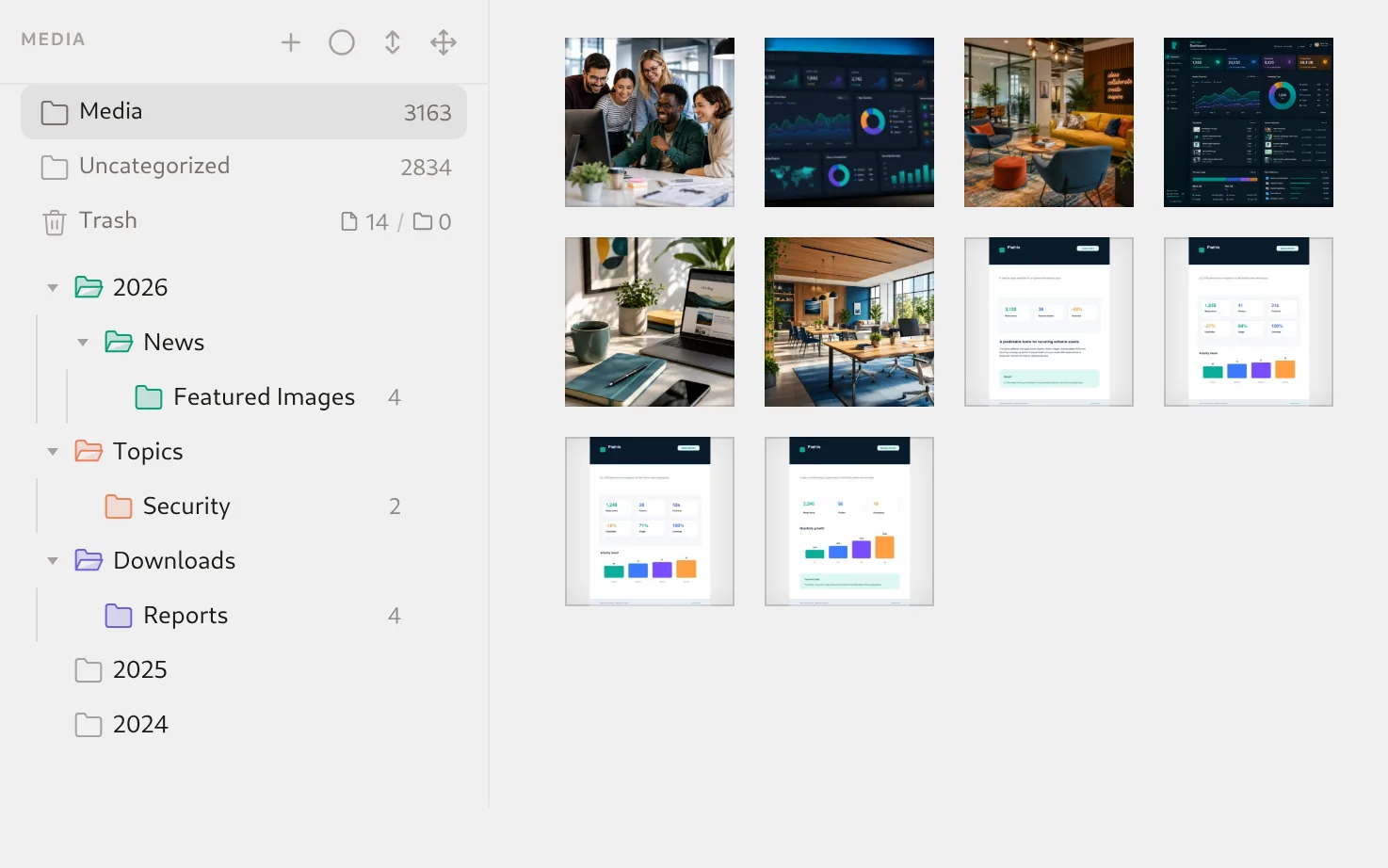
Plathix adds folders and nested folders to the WordPress Media Library. You decide what belongs together.
Start simple. Add more folders only when they help you find something.
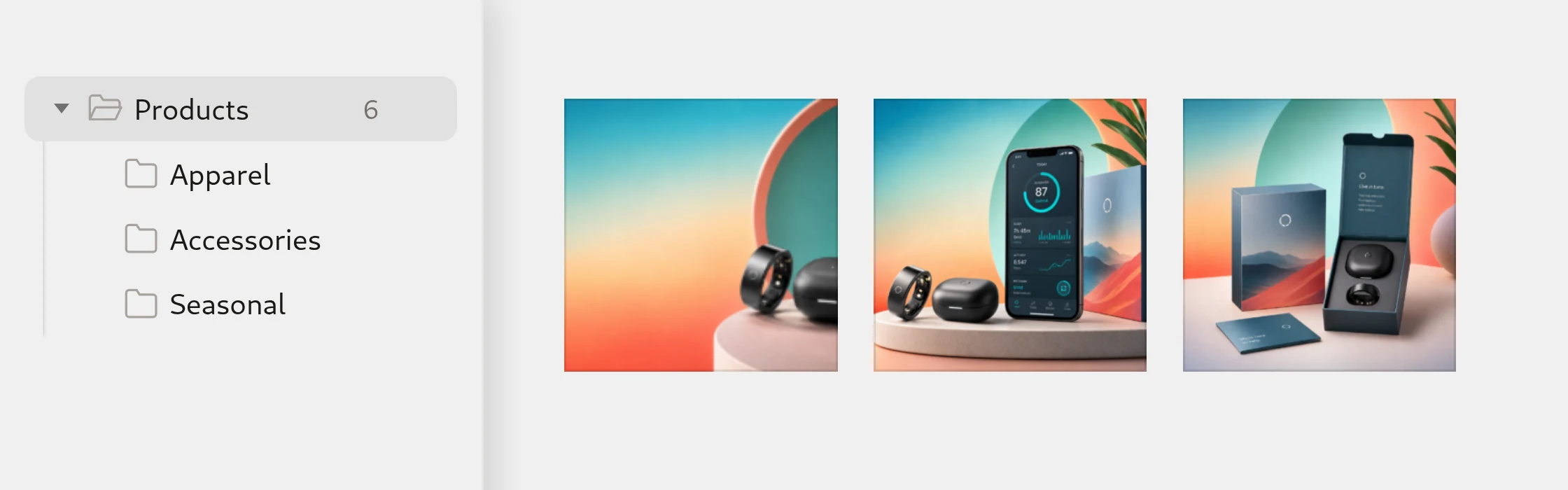
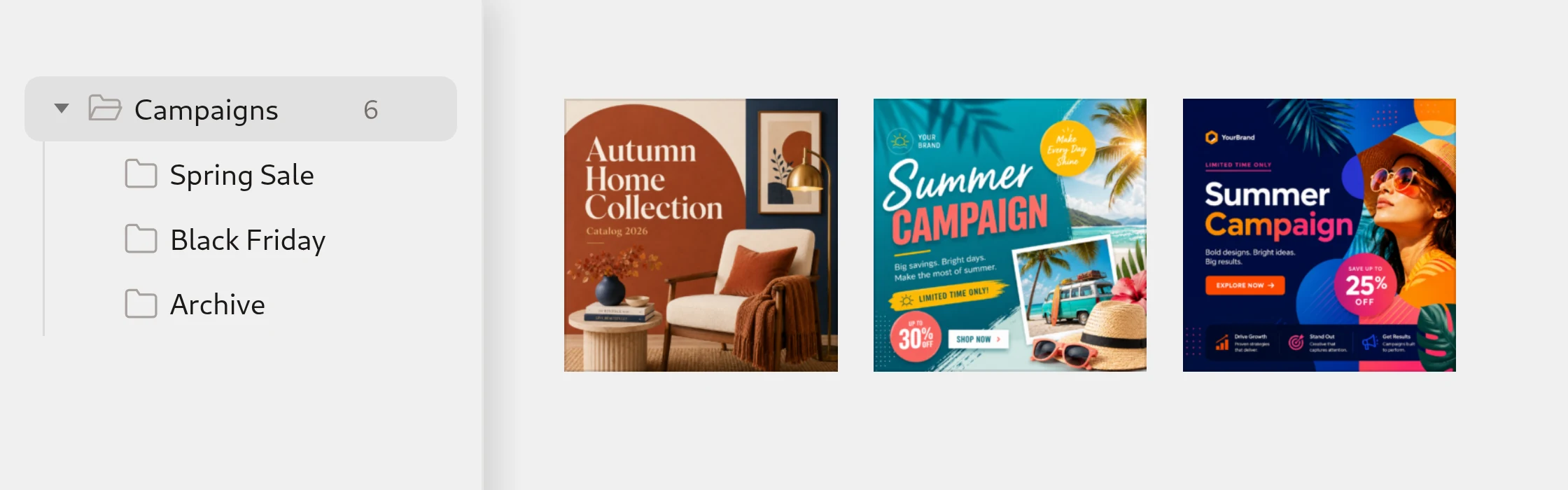
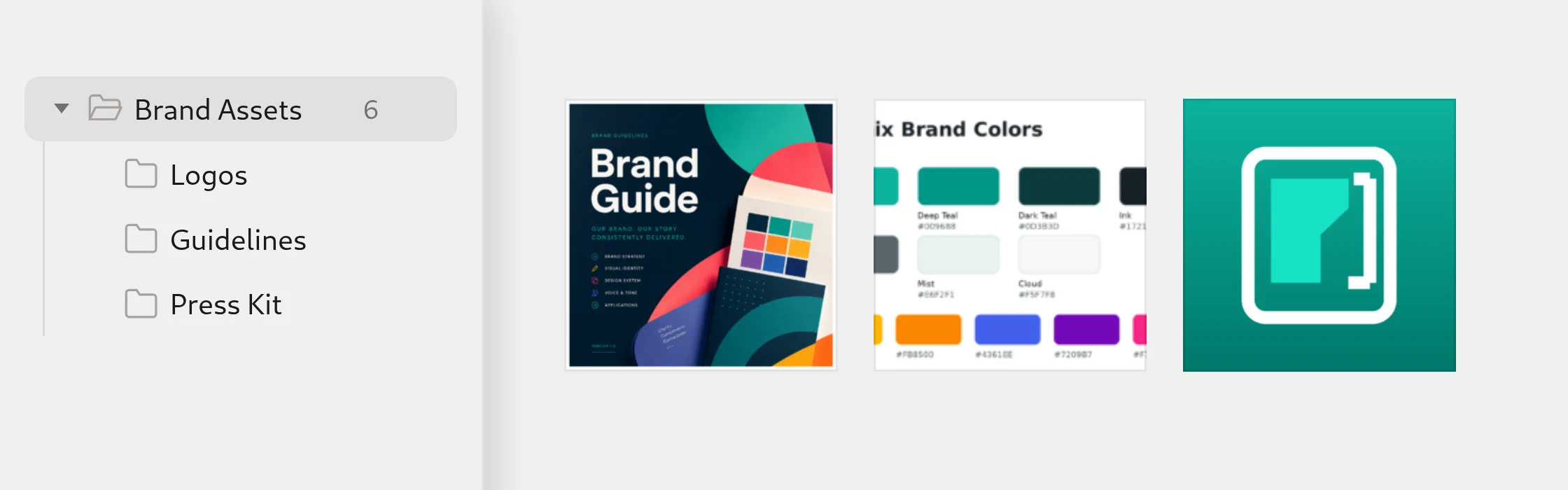
Organize the files you already have
You do not need to rebuild your Media Library.
Plathix works with the media already inside WordPress.
Create folders and subfolders
Build a structure around projects, campaigns, clients, or content.
Drag existing media into folders
Move files already in your Media Library. No re-upload needed.
Move several files together
Select multiple files and move them in one action.
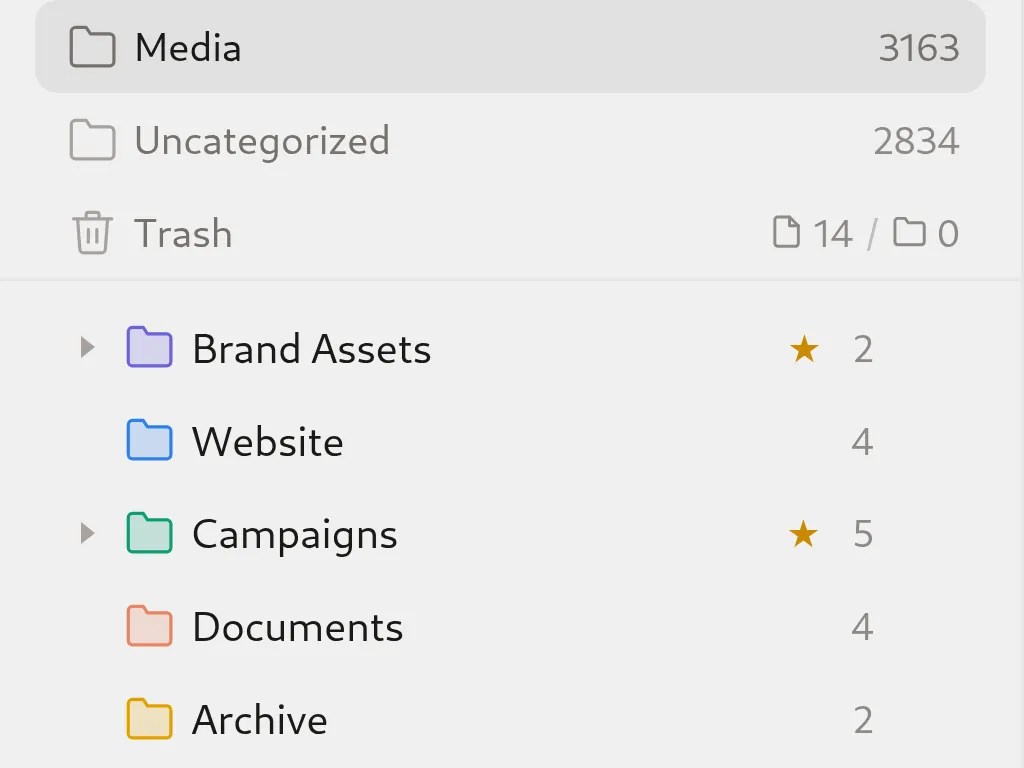
Use colors and favorites
Keep active projects and important folders easy to spot.
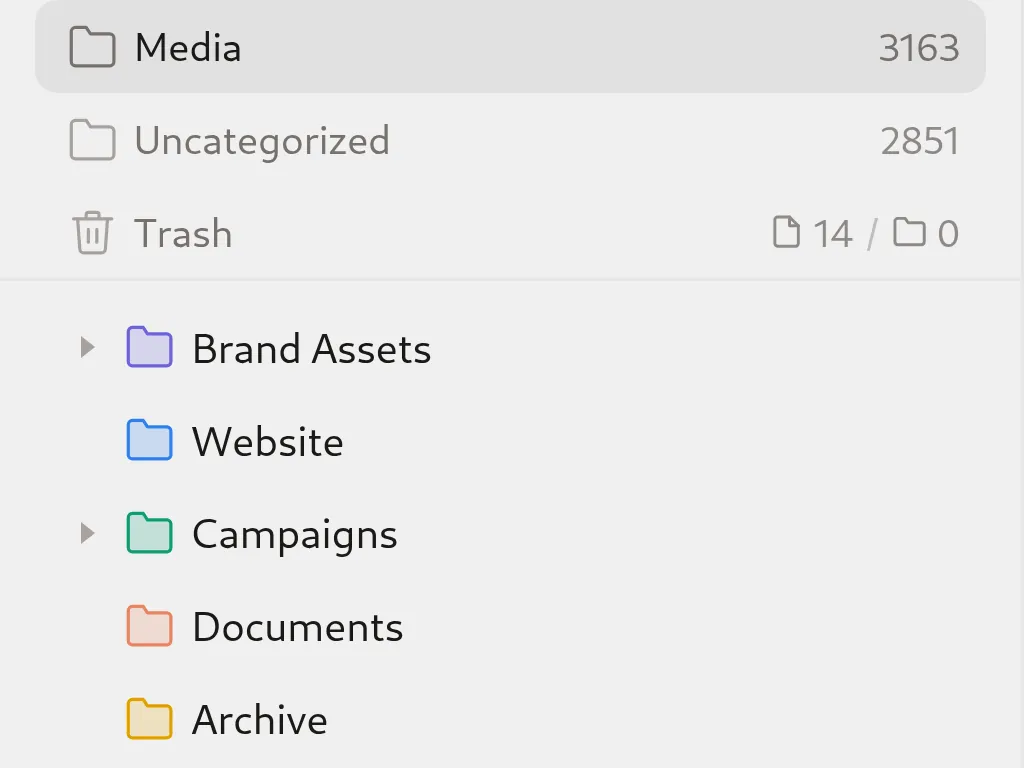
Find what still needs sorting
Open Uncategorized to find media that has no folder yet, then move it where it belongs.
Stop relying on file names alone
You may remember what a file was for when you upload it.
Months later, a name like IMG_2391.jpg tells you almost nothing.
WordPress search helps when you remember a file name or part of it. Folders add the context you may have forgotten.
Instead of searching the whole Media Library, start with the project, campaign, client, or content type where the file belongs.
You can still use WordPress search. Folders just give you a better place to start.
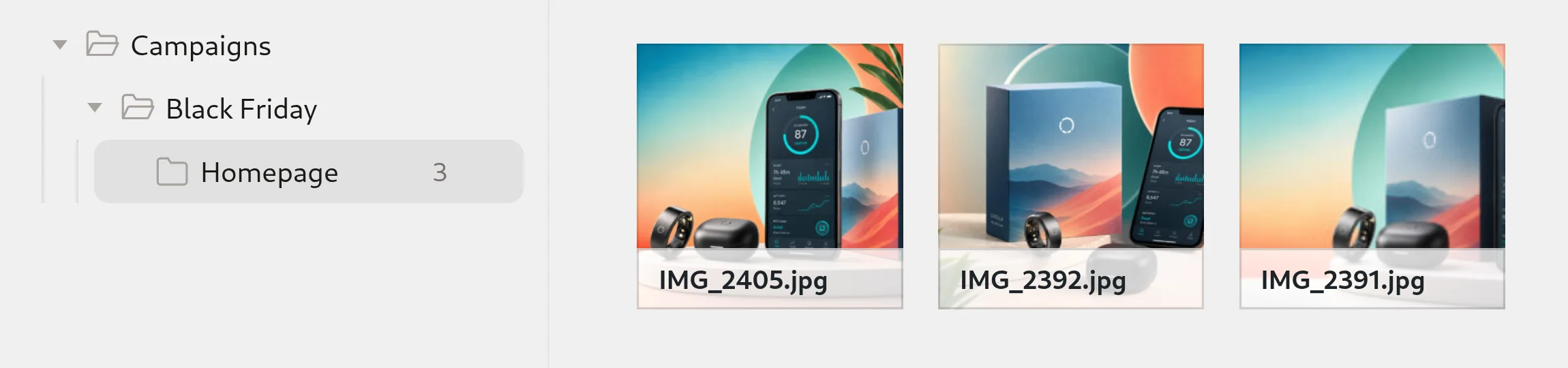
Will organizing my media change its URL? No.
Plathix uses virtual folders. Moving an attachment between Plathix folders changes its folder assignment. It does not move the physical upload to another WordPress directory.

→ Logos →

Your files stay where WordPress put them
Path checked before and afterYour file URLs stay the same
URL checked before and afterOrganize what is already there
Existing attachment moved without re-uploadDeactivate without losing media
Attachment remained in Media LibraryStart with a ready folder structure
You know you need folders. The harder question is how to organize them.
Plathix includes nine Ready Folder Sets for common types of websites. Pick the closest one, then rename, recolor, remove, or add folders.
Or start with an empty tree and build your own structure.
Explore Ready Folder Sets


More than a folder tree
A folder structure is only useful if it keeps working as your site grows. Build it once, reuse it, and test it in the workflows you actually use.
Reuse a structure on another site



Found a structure that works? Export it and use the same starting point on another WordPress site. Useful for agencies, multi-site projects, and handoff.
View export and import →What happens when the library gets large?
We do not use “fast” as a general claim. See the dataset, environment, actions, timings, and results from our large-library test.
View large-library test →Tested where you actually choose files
Organize media around the way you actually work
Stores, marketing teams, agencies, and publishers all use the Media Library differently. See what a useful folder structure can look like for your workflow.
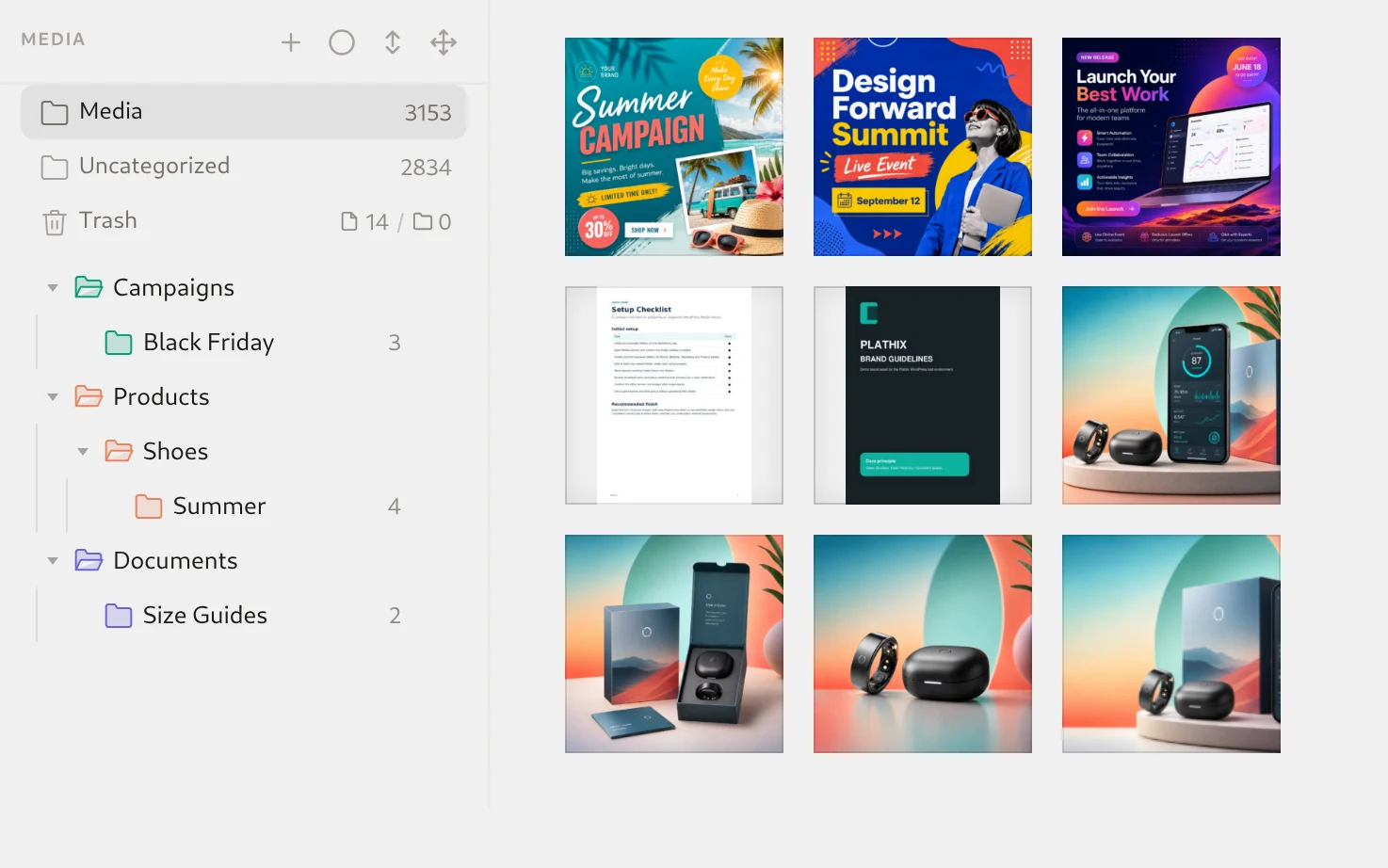
Stop mixing product photos with every other site asset
Product images, sale banners, PDFs, size guides, and campaign graphics all end up in the same Media Library.
Give each type of asset a place you can return to later.
Already have folders in another plugin?
You may already have months or years of folder organization. Switching plugins should not mean rebuilding that structure by hand.
Plathix can import existing folders from five supported media-folder plugins.
View migration options
Plathix →

Media folders FAQ
Are Media Folders included in Plathix Free?
Can I organize files that are already on my site?
Can I create folders inside folders?
Can I move several files at once?
Will moving a file change its URL?
Does Plathix move files into physical server folders?
What happens if I deactivate Plathix?
Can I import folders from another plugin?
Keep going with your Media Library
Ready to organize the files you already have?
You do not need to rename everything or upload it again.
Start with the media already in WordPress. Add folders, build a structure, and keep the URLs your site already uses.