Editor
Gutenberg compatibility
TestedThe block editor uses the standard WordPress media modal whenever a block needs an image, and Plathix adds its folder tree to that modal. So the folders you see in the Media Library are also there when you add an Image, Gallery or Cover block or set a featured image. We ran twelve checks over two runs, and all of them passed.
Versions and environment
| WordPress | 7.1 |
|---|---|
| PHP | 8.4.6 |
| Plathix | 1.0.0 Free (build 2ad782a8, 8 Sep 2026) |
| Gutenberg | Bundled with WordPress 7.1 |
| Theme | Divi 5.2.0 and a default theme (two test sites) |
| Test run | FREE-REGRESSION-2026-09-09, browser automation against a live site |
What was checked
| ID | What we did, and what happened | Result |
|---|---|---|
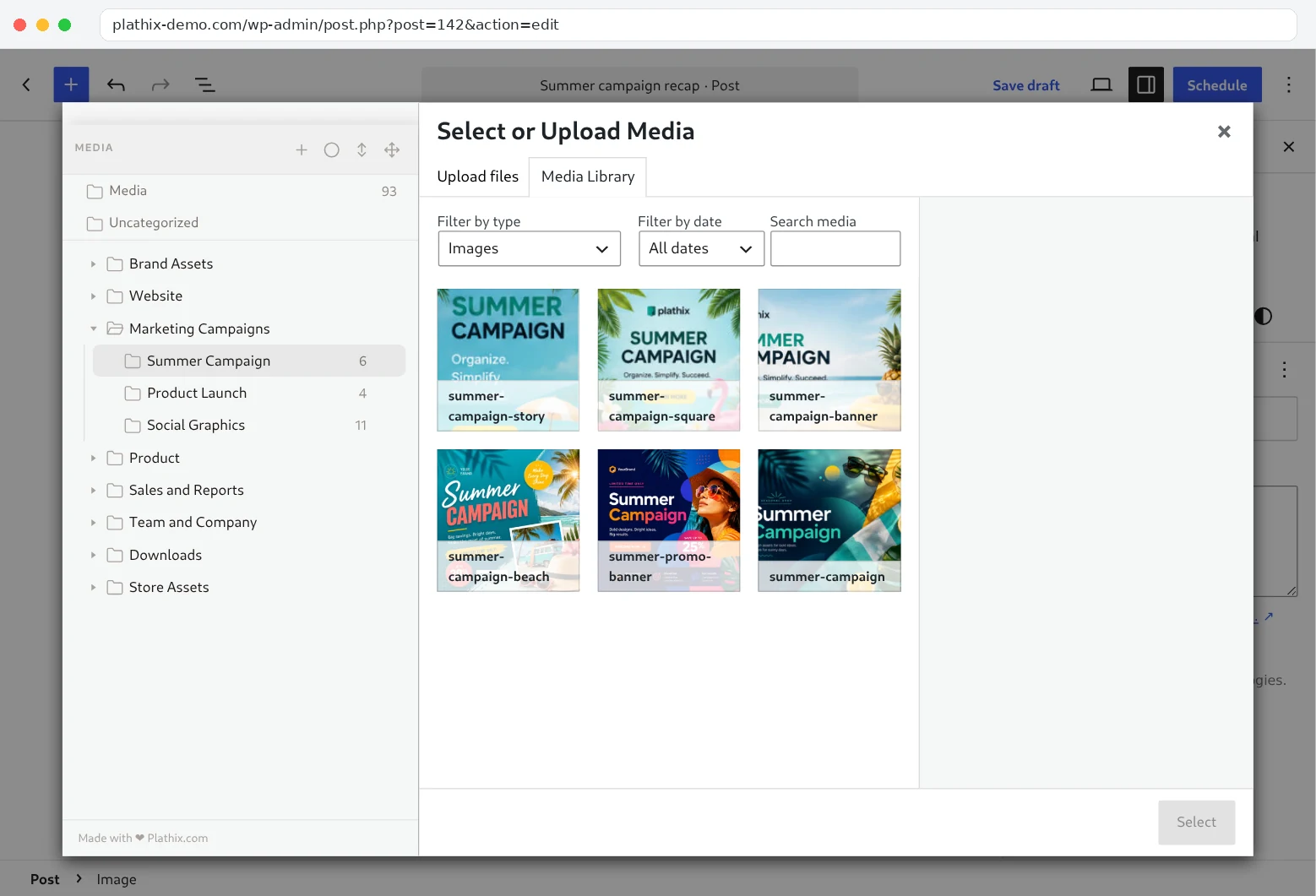
| PK1 | Add an Image block and click Media Library. The same folder tree as in the Media Library is there, file counts included. | Passed |
Watch the checkHow we checked. New post, Image block, Media Library. In the picker we opened Marketing Campaigns → Summer Campaign, picked summer-campaign-beach.jpg and clicked Select. What you see. The folder tree in the left column of the picker, the Summer Campaign folder with its six files, and the picked image inside the Image block right after Select. Recorded on 22 Sep 2026 on plathix-demo.com: WordPress 7.1, Twenty Twenty-Five, Plathix 1.0.0 Free. |
||
| PK1.1 | Open a folder and pick a featured image from it. The post gets that image. | Passed |
| PK1.2 | Add a Gallery block, open one folder and select a few files. The gallery gets those files and nothing else. | Passed |
| PK1.3 | Add a Cover block and pick its background image from a folder. The image is applied to the block. | Passed |
| PK3 | Open a folder in the picker and upload a new file. The file is saved into that folder, not into Uncategorized. | Passed |
Show proofHow we checked. In the Image block picker we opened Store Assets → Packaging (2 files), switched to Upload files and uploaded earbuds-packaging.png. What you see. Left: the picker with Packaging open before the upload. Right: the same folder after the upload, count 3, the new file first in the grid and already selected. Uncategorized is still empty. 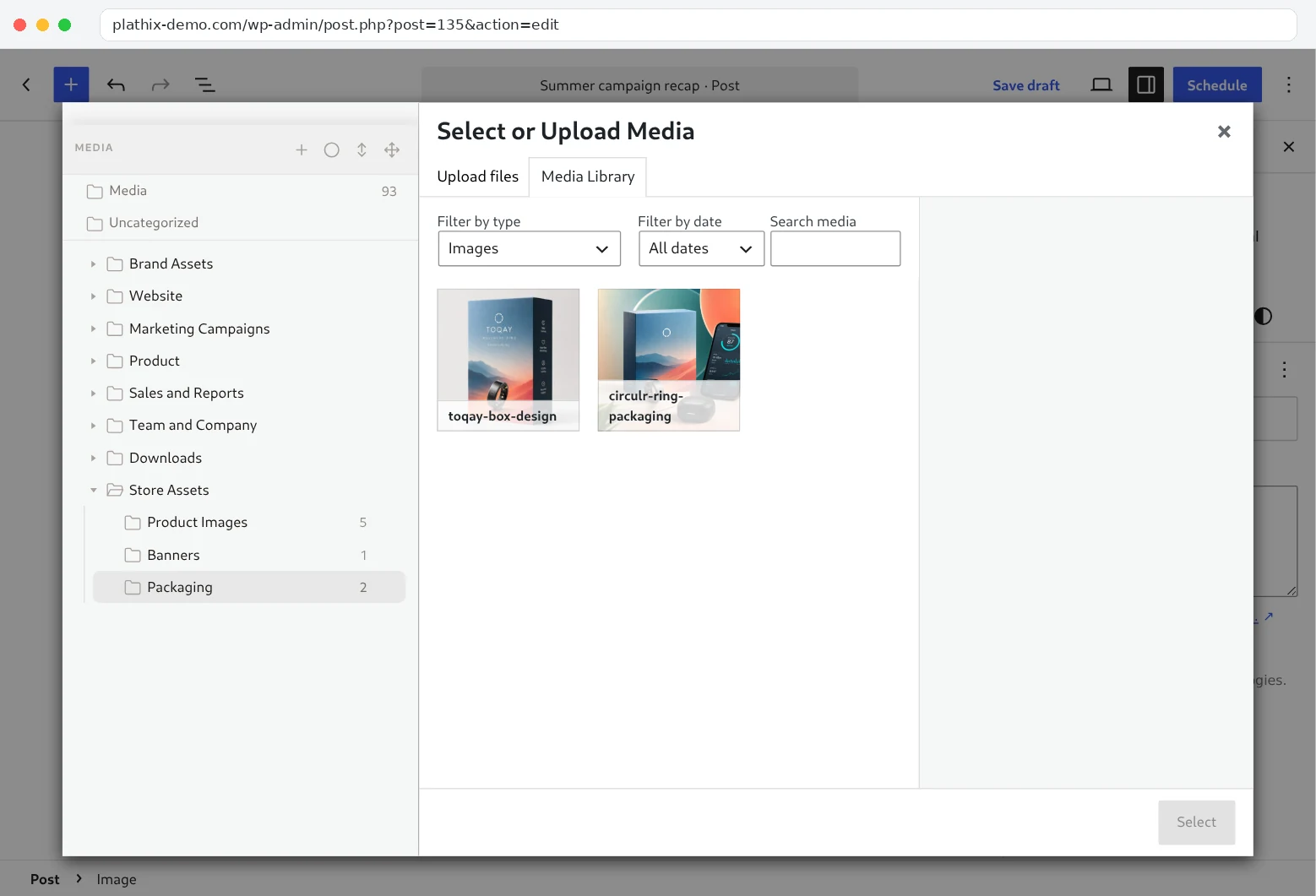
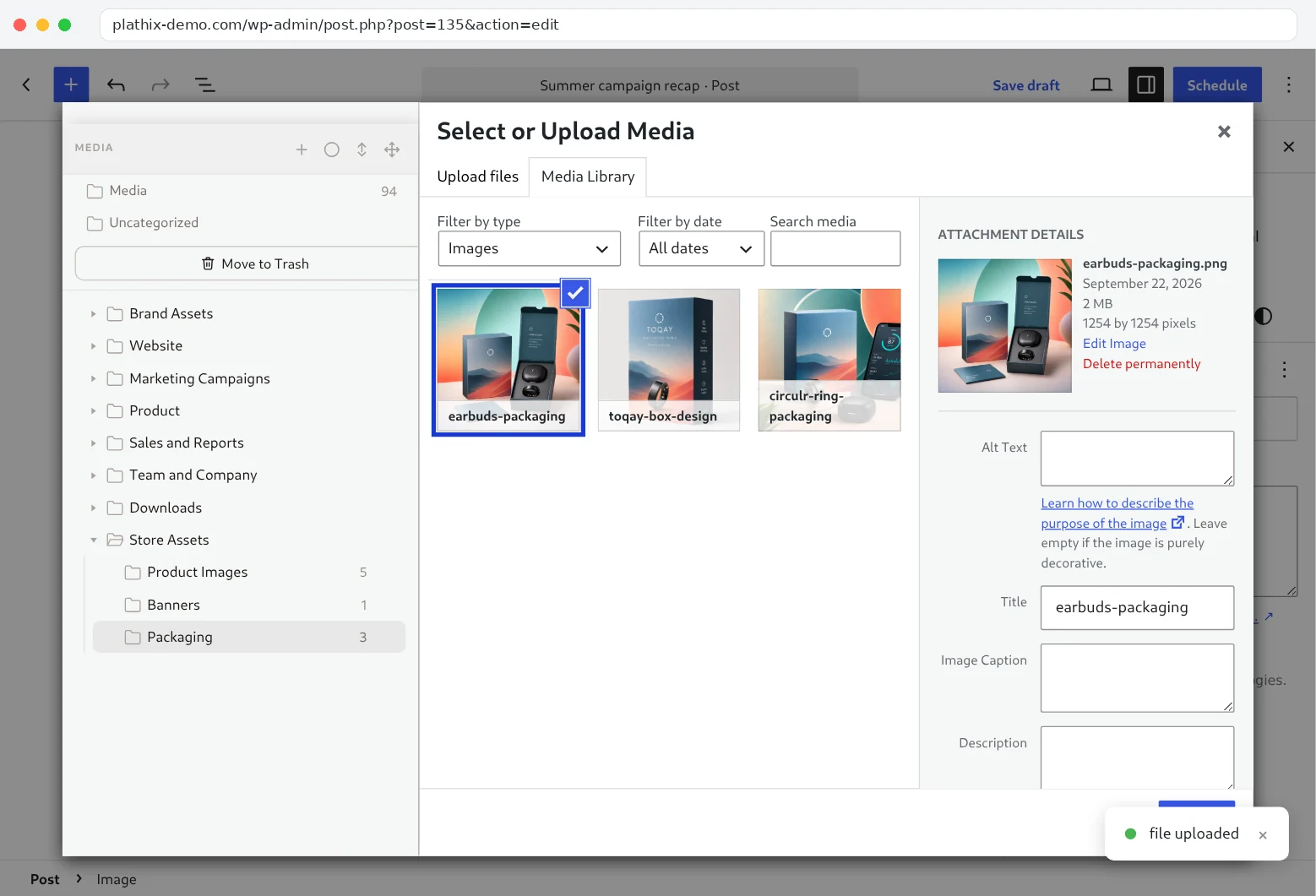
Recorded on 22 Sep 2026 on plathix-demo.com: WordPress 7.1, Twenty Twenty-Five, Plathix 1.0.0 Free. |
||
| PK4 | Search for a file name inside the picker. The results are the same as a search in the Media Library. | Passed |
| PK5 | Scroll down a large folder inside the picker until more files load. A file loaded this way can be selected. | Passed |
| PK7 | Create a folder without leaving the picker. It shows up in the picker and in the Media Library at the same time. | Passed |
| PK8 | Upload a PDF while a folder is open in the picker. The PDF is saved into that folder. | Passed |
| PK9 | From an Image block, open a folder that holds images and a PDF. The picker shows only the images; the PDF stays in the folder and is visible in the Media Library. | Passed |
| PK10 | Click through a few folders in the picker. The highlighted folder and the files next to it always match. | Passed |
| URL3 | Add two photos from a folder to a Gallery block and publish the post. Then move one of the photos to another folder and open the post again. Both photos are still on the page, nothing disappeared. | Passed |
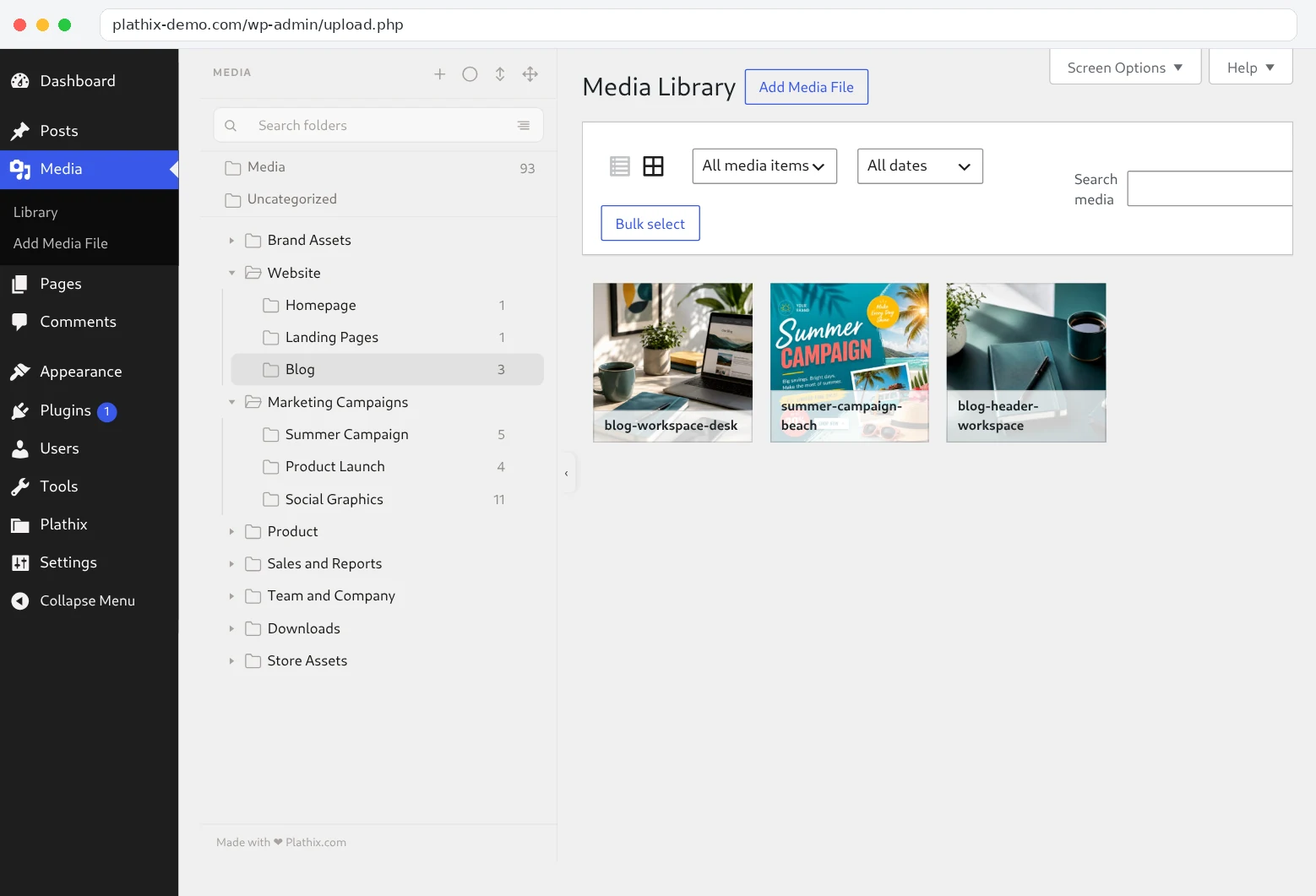
Show proofHow we checked. Added a Gallery block and picked two photos from Summer Campaign, then published the post. In the Media Library, moved one of the photos, summer-campaign-beach.jpg, into Website → Blog. Opened the post again. What you see. Step by step: picking the two photos in the Gallery block, the published post, the Media Library after the move (the photo now sits in Blog, Summer Campaign is down to 5), and the post opened again with both photos in place. The file path is the same before and after: /wp-content/uploads/2026/08/summer-campaign-beach.jpg. Moving a photo between Plathix folders changes where you find it in the library, not where it lives on the server. 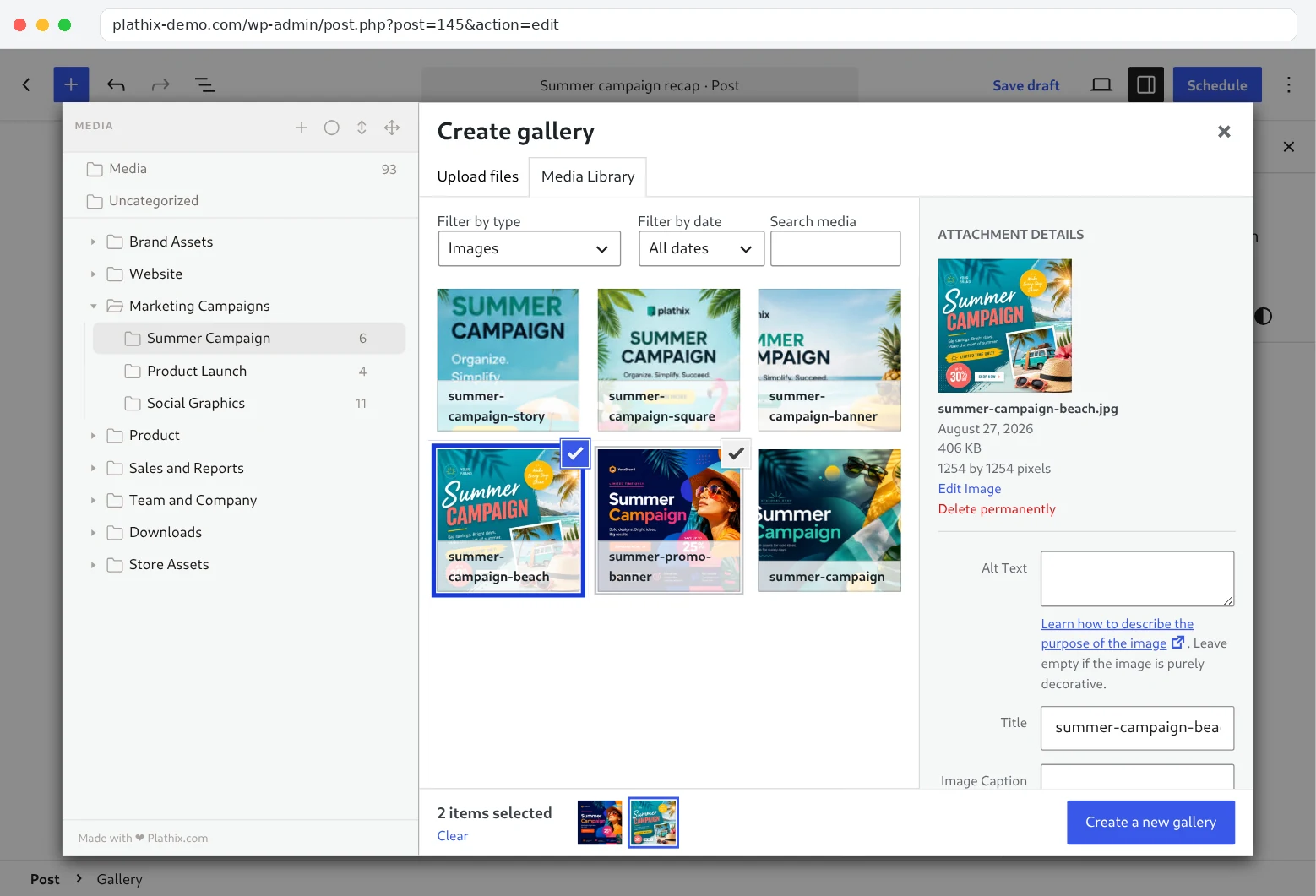


Recorded on 22 Sep 2026 on plathix-demo.com: WordPress 7.1, Twenty Twenty-Five, Plathix 1.0.0 Free. |
||
Known limitations
- The Image block’s picker shows only images. That is how WordPress works with or without Plathix: a folder that also holds a PDF shows a higher count in the tree than the number of files you see from an Image block. To see every file in the folder, open it in the Media Library.
Test setup
- Install and activate Plathix. There is nothing to configure; the folder tree shows up in every WordPress media modal.
- Open a post, add an Image block and choose Media Library. Your folders are in the left column.
Retest
Repeated on every Plathix release and on each WordPress major update.