A file sits in one Plathix folder at a time, or in none. You can drag files onto folders, move a selection at once, change the folder in Attachment details, or upload straight into a folder. Nothing moves on disk, and file URLs stay the same.
When you need this
- Right after activation. Every existing file is in Uncategorized. You sort the backlog into folders, one screen at a time.
- A blog editor with new author photos. You select the batch and move it into Editorial › Authors with one drag.
- A WooCommerce store adding product shots. You open the folder for the product line and upload the photos straight into it.
How to drag a file onto a folder
- Open Media → Library.
- Drag a tile in grid view, or a row in list view, onto a folder in the panel.
- Drop it. “1 file moved → Name” confirms the move.
The counts next to the folders update. The Uncategorized count updates when you reload the page.
You need the Upload access level or higher. In Plathix Free that is every role that can upload files: administrator, editor and author.
If you drag a file out of Trash onto a folder, Plathix first asks “Restore file and move it to folder “Name”?”.
How to move several files at once
- In grid view, click Bulk select and click the files. In list view, tick their checkboxes.
- Drag any one of the selected files onto a folder. All selected files move together.
- With 10 or more files, Plathix asks “N items will be moved. Continue?”. Confirm to move them.
“3 files moved → Infographics” is an example of the confirmation.
The question in step 3 comes from Plathix → Settings → General, Confirm bulk actions. Its checkbox reads “Confirm bulk actions on 10 or more items” and is on by default. See General settings.
How to change the folder in Attachment details
- Click a file to open Attachment details.
- Find the Folder field. It shows the full path, for example “Editorial / Featured Images”.
- Click Change.
- Pick a folder in the Move to folder tree. “Folder changed.” confirms it.
Click the path in the Folder field to open that folder in the Media Library. On the file’s edit page the same field sits in the Folder & file box. Choosing Uncategorized removes the file from its folder.
How to upload into a folder
- Click the folder in the panel.
- Upload the files: drop them on the grid, or click Add Media File.
- The files land in the folder that was open when the upload started.
This works in grid view, in the media picker and in list view. In list view, Add Media File opens the WordPress upload page. Nothing there shows the folder, but files you upload there go into the folder that was open.
The folder is set by the first file of an upload. If you click another folder while files are still uploading, they still go to the first folder. Plathix tells you the upload is still running and returns the view to the upload folder when it finishes.
Where an upload goes depends on what is open:
- Media (all files): the Default upload folder from Plathix → Settings → General. If that is set to No folder, the file shows in Uncategorized.
- Uncategorized: no folder, even if a default upload folder is set.
- Trash: uploads are blocked with “Go to your active media library to upload new files.”
Uploads that bypass the media window carry no folder, for example a file dropped onto the block editor canvas or sent with a block’s own Upload button. They go to the Default upload folder, or to Uncategorized when none is set.
Example
Suppose the Blog & Content tree is already set up, but four files still sit in Uncategorized: office-interior.png, product-detail.png, summer-campaign.png and blog-header-workspace.jpg. Infographics holds 2 files, Featured Images holds 3.
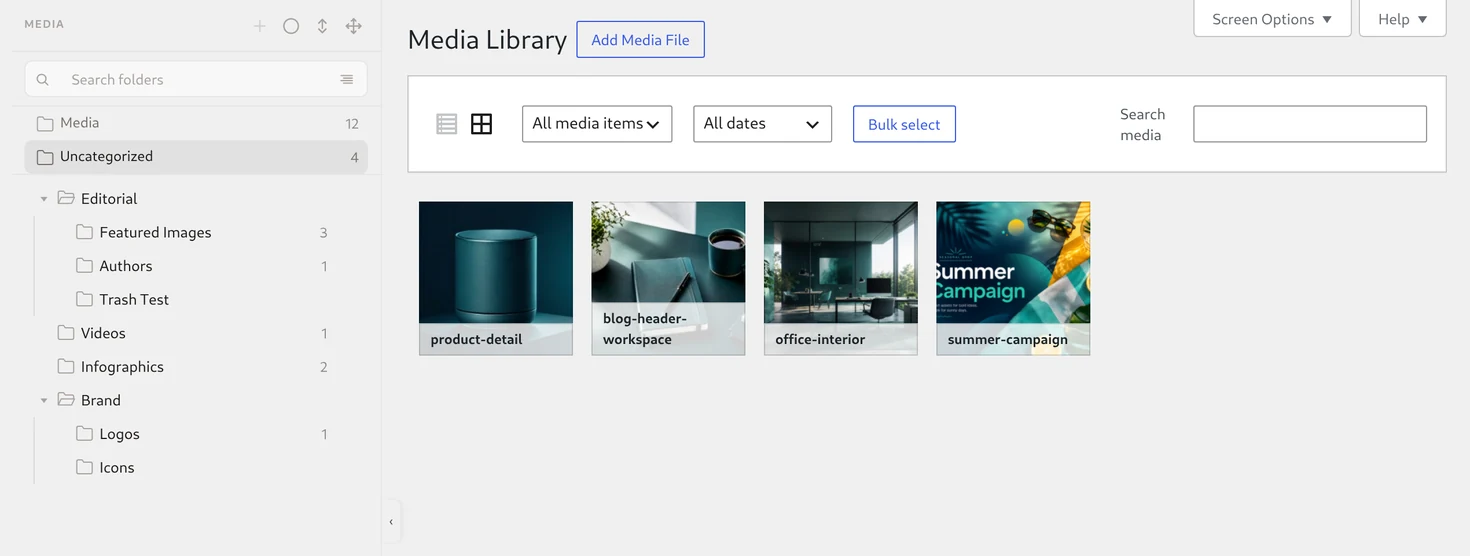
- Click Uncategorized, then Bulk select.
- Click
office-interior,product-detailandsummer-campaign. - Drag
summer-campaignonto Infographics. You would see “3 files moved → Infographics”, and Infographics would show 5. - Click
blog-header-workspaceto open Attachment details. Click Change in the Folder field and pick Editorial › Featured Images. You would see “Folder changed.”, and Featured Images would show 4. - Reload the page. Uncategorized would now be empty.
Result: every file would have a folder. File URLs do not change on a move, so posts that use summer-campaign.png would still show it.
What we tested
| Check | Result |
|---|---|
| New uploads go to the open folder, also when you switch folders during the upload | Passed: PDF, DOCX and ZIP too; 55 and 520 files at once |
| Uploads from list view go to the open folder | Passed: September run |
| Counts + Folder column | Passed: counts match the real files, update after an upload without a reload and are the same for every role; Folder column and Folder field with Change |
| Grid and list view show the same files; date filter, search and sort stay on page 2 | Passed |
| Dragging a file out of Trash onto a folder restores and moves it in one gesture | Passed |
| Gutenberg: Add two photos from a folder to a Gallery block and publish the post. Then move one of the photos to another folder and open the post again. Both photos are still on the page, nothing disappeared. | Passed |
| Elementor: Add a photo to an Image widget and publish the page. Then move that photo to another folder and open the page again. The photo is still there, nothing disappeared. | Passed |
Limits
- One file, one folder. Every move replaces the previous folder. Moving a file into Uncategorized removes its folder.
- Uncategorized lists files with no folder. After activation every existing file is there. The Plathix Home page calls the same set “Unsorted”.
- After you move files out of Uncategorized, its count updates when you reload the page.
- One drag or one bulk move can take up to 500 files. If you make a lot of moves in a short time, you see “Too many requests. Please try again later.” Pause for about a minute, then go on.
- Both views show the same folder panel. List view adds a Folder column.
- In list view, clicking a folder changes the page address, so the browser’s Back and Forward buttons work. In grid view the address stays the same.
- In list view the file type filter resets when you switch folders. The search text is kept.
In short
Drag a file or a selection onto a folder, or use Change in Attachment details. A file has one folder at a time, and moving it never changes its URL or attachment ID. New uploads go to the folder that is open when the upload starts; with Media open they go to the Default upload folder. With 10 or more files Plathix asks before it moves them. The Uncategorized count updates when you reload the page.